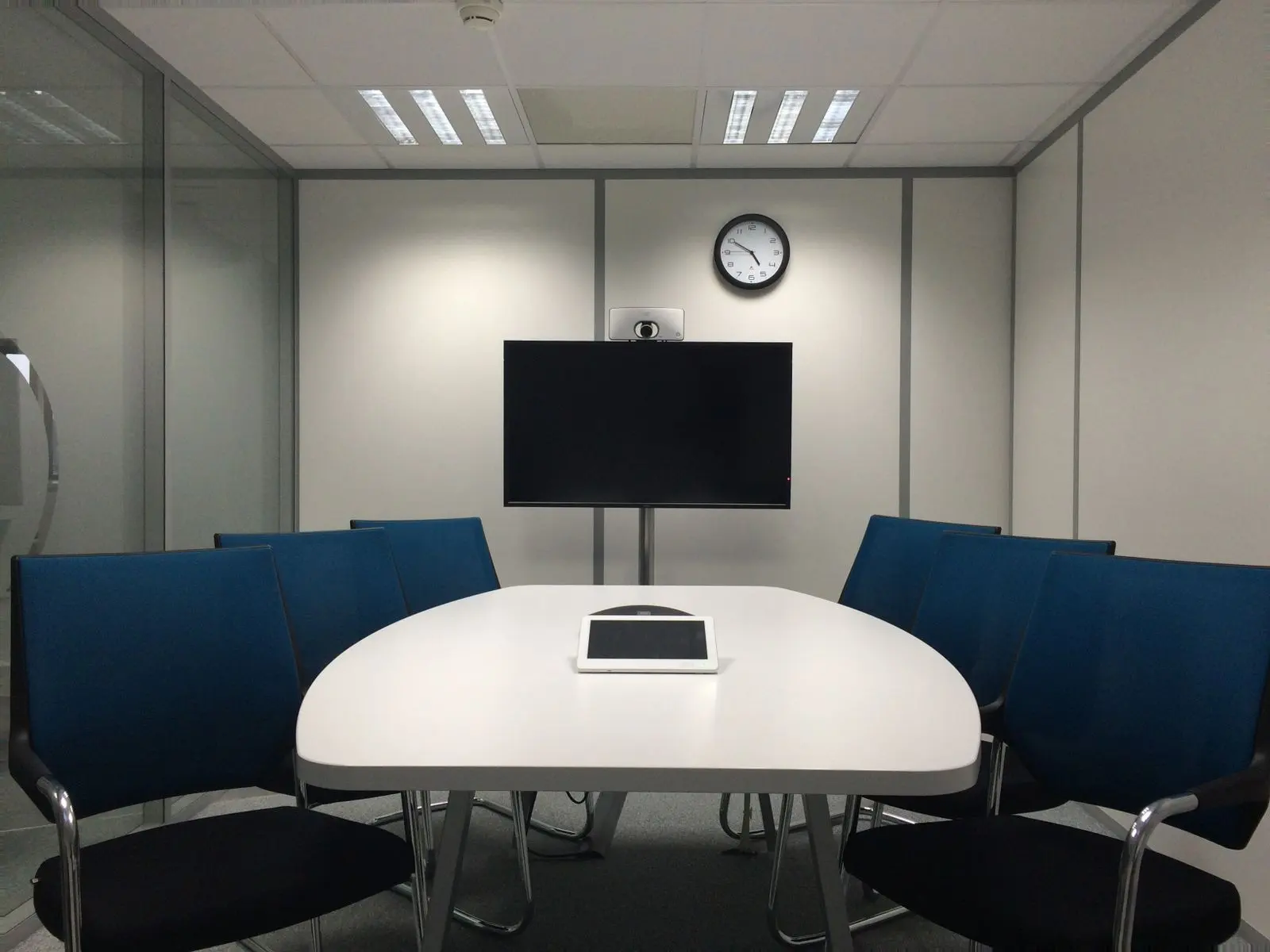
A Microsoft Teams Rooms installation has five parts: choosing certified hardware, licensing each room, creating a resource account, preparing the network, and commissioning the room. Microsoft's Teams Rooms documentation defines each step; this guide puts them in the order an installation actually runs.
On this page
- What is Microsoft Teams Rooms?
- Which Teams Rooms license do you need?
- How do you choose certified Teams Rooms hardware?
- How do you set up a Teams Rooms resource account?
- What network does a Teams Room need?
- Can a Teams Room join Zoom or Webex meetings?
- How is a Teams Room installed, step by step?
- How do you manage Teams Rooms after installation?
- Frequently asked questions
- References
What is Microsoft Teams Rooms?
Microsoft Teams Rooms is Microsoft's dedicated meeting-room system. It runs on certified Windows or Android devices from partner manufacturers and is designed for spaces from huddle areas to large conference rooms.
A Teams Room is always on and always signed in with its own account, so a meeting on the room's calendar starts with one touch on the console. That is the practical difference from plugging a laptop into a display: the room behaves the same way for every person who walks in, and IT manages it centrally. See Microsoft Teams Rooms installation in New York for how we deploy rooms by size.
Which Teams Rooms license do you need?
Microsoft offers two licenses: Teams Rooms Basic and Teams Rooms Pro. Basic is free with a certified system but limited to 25 rooms per organization; beyond that, or for advanced features, you need Pro.
According to Microsoft's licensing documentation, Basic covers core meetings — scheduling, joining, content sharing and whiteboard — plus basic security and management. Pro adds Teams Rooms Pro Management, Intune, Microsoft Entra ID P1 and features such as front row, large gallery, dual screens and multi-camera.
| Capability | Teams Rooms Basic | Teams Rooms Pro |
|---|---|---|
| Cost | Free with a certified system | Paid per room |
| Room limit | Up to 25 per organization | No Basic cap applies |
| Core meetings and content sharing | Yes | Yes |
| Dual screens and multi-camera | No | Yes |
| Pro Management portal (monitoring, updates) | Enrollment, inventory and automatic updates only | Full |
| SIP join to third-party meetings | No | Yes (plus a SIP plan) |
If a room will have dual displays or more than one camera — common in medium conference rooms and boardrooms — plan on Pro from the start. Our conference room AV installation standards specify the license with the hardware.
How do you choose certified Teams Rooms hardware?
Choose systems and peripherals from Microsoft's certified lists for Windows and Android. Certification means Microsoft has tested the device for security, audio and video quality, the Teams experience and accessibility.
Microsoft's certified systems and peripherals page notes that certification covers hardware design and performance, not feature-level or cloud-environment support — so a certified device still has to be sized for the room.
In practice, room size decides the platform. Android video bars suit huddle and small rooms. Windows-based systems with separate cameras, ceiling microphones and a DSP suit medium rooms, boardrooms and training spaces where one bar cannot cover every seat.

Size the hardware to the room
- Huddle (2–4 seats): Android video bar, single display, touch console
- Small (4–8): video bar or modular camera and microphone, single or dual displays
- Medium (8–12): Windows compute, auto-framing camera, ceiling microphone array, DSP, dual displays
- Large and boardroom (12+): multiple cameras, ceiling arrays, distributed audio, room control
How do you set up a Teams Rooms resource account?
Create one resource account per Teams Rooms device, assign it a Basic or Pro license, and configure its password and calendar processing before the device is signed in. Microsoft recommends cloud-only accounts.
Microsoft's resource account guidance states that accounts can be created in the Microsoft 365 admin center, Exchange Online PowerShell or Exchange Server; that "password never expires" is required; that the account's UPN must match its SMTP address; and that the default time zone is Pacific, so New York rooms need it changed to Eastern.
A wrong time zone on a Manhattan room's account is one of the easiest faults to miss: meetings appear three hours out on the console. We check it on every commissioning.
What network does a Teams Room need?
A Teams Room needs reliable bandwidth for audio, video and screen sharing, plus quality of service so real-time media is prioritized. Microsoft publishes per-endpoint bandwidth figures and recommended QoS markings.
Microsoft's network preparation guidance lists recommended bandwidth of 2,500 kbps up and 4,000 kbps down for meeting video, and 58 kbps each way for audio. Its QoS guidance recommends marking audio DSCP 46, video DSCP 34 and screen sharing DSCP 18.
| Traffic | Recommended (up / down) | Suggested DSCP marking |
|---|---|---|
| Audio | 58 / 58 kbps | 46 (EF) |
| Meeting video | 2,500 / 4,000 kbps | 34 (AF41) |
| Screen sharing | 2,500 / 2,500 kbps | 18 (AF21) |
Room devices also need PoE budget for peripherals and a VLAN agreed with IT. See our video conferencing installation approach for how we coordinate this.
Can a Teams Room join Zoom or Webex meetings?
Yes. Microsoft supports Direct Guest Join for Webex, Zoom and Google Meet on Basic or Pro, at up to 720p on one display. SIP join supports up to 1080p on two displays but needs Pro and a SIP plan.
Per Microsoft's third-party meeting documentation, the room mailbox must be configured to process external meeting invitations, and Webex Direct Guest Join requires the host site to meet Webex version requirements. For guests who need full control, a bring-your-own-meeting USB connection is the fallback.
How is a Teams Room installed, step by step?
Installation runs from site survey to commissioning. Licensing, accounts and network are prepared first, so on install day the room is mounted, cabled, signed in, tuned and tested in one visit.
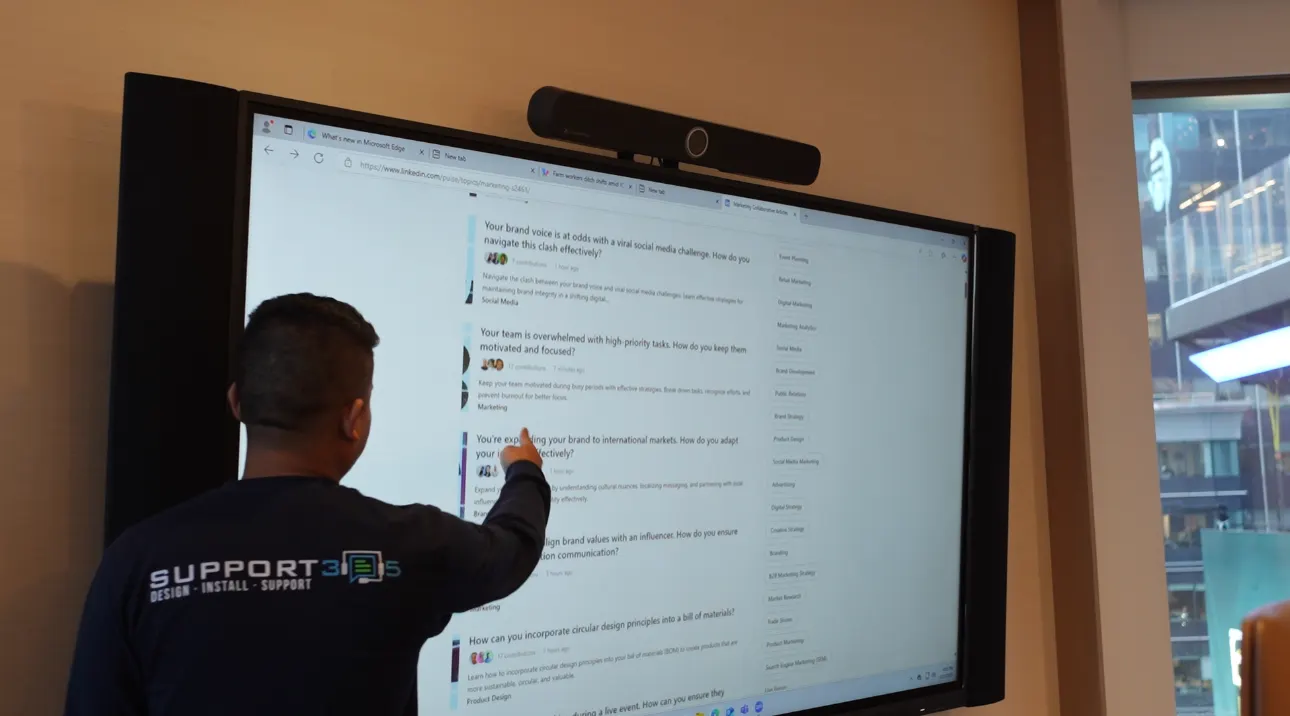
Teams Rooms installation sequence
- Survey the room: dimensions, seating, ceiling, glazing, power, network drops and building access rules.
- Choose certified hardware sized to the room and confirm Basic or Pro licensing.
- Create the resource account, assign the license, set password policy, calendar processing and time zone.
- Agree VLAN, PoE, QoS and firewall requirements with IT.
- Mount displays, camera and microphones; run and terminate cabling to code.
- Sign in the device, enroll it in management and apply updates.
- Tune audio (DSP and echo cancellation), set camera framing and test calls, sharing and third-party join.
- Document the room, train users and hand over to IT.
How do you manage Teams Rooms after installation?
Teams Rooms are managed in the Teams admin center, and Pro-licensed rooms add Teams Rooms Pro Management for health monitoring, automatic remediation, staged updates and reporting.
Microsoft describes Teams Rooms Pro Management as a cloud service that monitors and updates devices and peripherals and does not access live meeting content. For multi-room offices we pair it with an AV service and support agreement so hardware faults get an on-site response.
Frequently Asked Questions
How long does a Teams Rooms installation take?
A huddle or small room using a video bar is usually installed and commissioned in a day once licensing, the resource account and network are ready. Medium rooms and boardrooms with ceiling microphones, a DSP and control take longer. In New York buildings, freight elevator windows and after-hours rules often set the schedule more than the equipment does.
Is Teams Rooms Basic enough for my office?
Teams Rooms Basic suits organizations with 25 rooms or fewer that need core meetings and content sharing on single-display rooms. Microsoft caps Basic at 25 licenses per organization. If you need dual displays, multi-camera rooms, SIP join or full Pro Management monitoring, Teams Rooms Pro is required.
Do Teams Rooms need Windows or Android?
Both are certified options. Android systems, usually video bars, are simpler and well suited to huddle and small rooms. Windows systems support a broader range of peripherals and are typical in medium rooms, boardrooms and training rooms. Many organizations run both, standardized by room size so each room type is consistent.
Why does the resource account password need to never expire?
A Teams Room signs in unattended. If its password expires, the room signs out and stops joining meetings until someone signs it back in. Microsoft lists "password never expires" as a requirement for Teams Rooms resource accounts for this reason, and conditional-access policies must also allow the room account to sign in.
Can we reuse our existing displays for Teams Rooms?
Often, yes. Commercial displays in good condition, mounts and cable paths can usually stay. The conferencing compute, console, camera and microphones are replaced with certified Teams Rooms hardware. The display still needs to be sized correctly for the farthest seat, so an assessment confirms whether it is worth keeping.
What happens to Teams Rooms Standard or Premium licenses?
Microsoft states that existing Teams Rooms Standard and Premium licenses can be used until they expire, and recommends moving to Teams Rooms Pro. When renewing, check whether each room needs Pro features or can run on Basic within the 25-room limit, and budget accordingly.
Who should handle Teams Rooms provisioning — IT or the AV integrator?
Both, working together. IT owns the tenant, identity, licensing and security policy. The integrator sizes hardware, installs and tunes the room, and needs the account and network ready on install day. Agreeing responsibilities before installation avoids the most common delay: a mounted room that cannot sign in.
Plan the Teams Room before you mount it
A successful Microsoft Teams Rooms installation is decided before anyone climbs a ladder: certified hardware sized to the room, the right license, a correctly configured resource account and a network prepared for real-time media. Get those right and install day is predictable.
If you are rolling out Teams Rooms across a New York office, we can survey the rooms and give you a standard, a license plan and a schedule.
Scope note: Building code, accessibility and licensing requirements vary by project, building and jurisdiction and change over time. This article is general information for planning purposes. Confirm requirements with the authority having jurisdiction, your licensed design professionals and the platform vendor before making decisions.
References
- Microsoft Teams Rooms — Microsoft Learn
- Microsoft Teams Rooms licenses — Microsoft Learn
- Teams Rooms certified systems and peripherals — Microsoft Learn
- Create and configure resource accounts for Teams Rooms — Microsoft Learn
- Prepare your organization's network for Microsoft Teams — Microsoft Learn
- Implement Quality of Service (QoS) in Microsoft Teams — Microsoft Learn
- Enable Teams Rooms devices to join third-party meetings — Microsoft Learn
- Microsoft Teams Rooms Pro Management — Microsoft Learn
References verified and re-checked at each scheduled review. Read our editorial policy.